
Apollo Server Features - Rejoin, Stall Indicator and Force Advance
This article explains the new suite of features added to Apollo to improve the resilience of your game sessions. It is intended to give facilitators and tech support personnel the knowledge they need to understand these features and run sessions with confidence.
The stall indicator
The stall indicator appears on the facilitator view when the Apollo server detects that a client is not responding. It can be triggered by:
- A VR headset pause, caused by the display switching off, the headset going to sleep, or the participant leaving the boundary
- A network issue, such as a disconnection or a blip in connectivity
- A slow client device that is simply trying to load the next scene, if the indicator appears during a transition
The indicator only appears after roughly 6 seconds of unresponsiveness. If it appears, check in with the participant and help them get reconnected if needed.
Whilst we have put guards in place to avoid force alarms, you may sometimes see this briefly come up for a participant with a healthy connection.
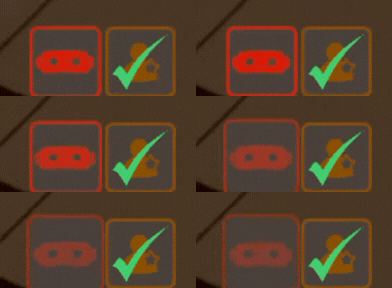
Note: If the facilitator device is the one that is unresponsive, or the facilitator has a network issue, the indicator may trigger for all clients.
Force advance
Being stuck on a black screen is now a thing of the past. A force advance button appears in the facilitator options panel whenever a scene transition becomes stuck.
The button only appears once the transition has been stuck for roughly 8 seconds, and is accompanied by the stall indicator, which shows you which participants are struggling to get through the transition. Please note that if a transition is stuck but no force advance button appears; this is because the facilitator client itself is struggling to load the next scene.
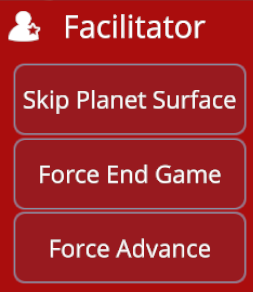
Important: When you use force advance, only the healthy participants progress. Stalled participants remain on a blank screen until their connection has recovered and they have loaded the transition.
If the group has moved on by the time they transition, their device will automatically catch up with the rest of the team once they recover.
Rejoin
If a participant does disconnect from Apollo, they can rejoin at any stage of the game and catch up to whatever stage the rest of the group has reached. There are two ways to do this:
-
Via an error screen. Whenever a disconnect error message appears, VR users see a 5 second countdown and then rejoin automatically once the timer is up. PC users must click a rejoin button to start the process.
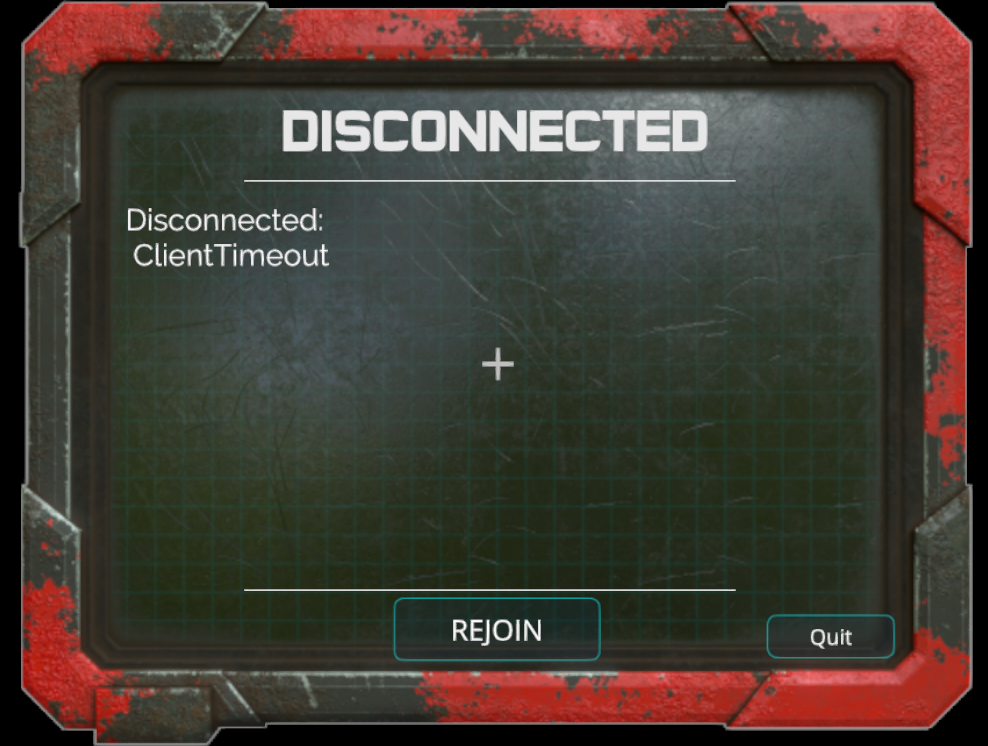
- Quit and relaunch. If the device is frozen, or the participant needs to stop playing for a moment, they can quit the game and relaunch the app from fresh, then rejoin using the same activation code as before.
Note that rejoining can take up to 30 seconds depending on the participant's device, their network, and the stage of the game, because the game is busy restoring the entire game state. On some devices the participant may see a blank screen for a period whilst this happens, so advise rejoining participants to be patient.
Mid-game join
Participants can now join mid-game, provided they use a code that is assigned to the game session but not already in use. This means you can get a session started without waiting for every participant to arrive in the lobby.
A participant can join at any stage; the game simply fast-forwards through the scenes the team has already completed.
Facilitator machine and master client policy
Facilitator devices
For the features described in this article to work as intended, your facilitator client must be running on a reliable PC with a strong internet connection. Otherwise, the stall indicator and force advance will not behave as expected. We strongly recommend always using a high-spec PC with dedicated graphics to keep sessions stable.
Master client
Because of the rejoin function, one of the users in the game must act as the master client for the server. This is what allows the game state to be restored for rejoining participants.
The master client policy favours the facilitator, since in most cases the facilitator is running the most stable device and network setup. For this reason, take extra care to ensure the facilitator stays in the game at all times.
If there is no facilitator, the master client is assigned to the first person who joins the lobby.