
Apollo Build 3.3.44 PC installer change instructions
As of 18th May 2026, Apollo desktop for facilitators and B/C players must be installed from a new release channel to receive the latest updates. Once you have moved to the new location, future updates will be automatically installed on launch.
To move to the new installer, you must first uninstall the current version of Apollo on your Windows 10/11 PC. To do this please following the steps below:
-
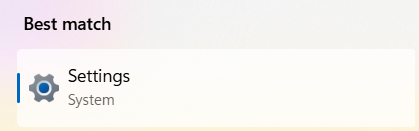
Go to system settings
-
On the left side panel, go to apps, then choose installed apps

-
In the installed apps list, locate Apollo and click more options (...) > uninstall
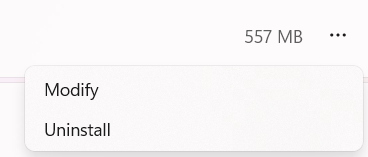
- Follow steps to uninstall as prompted by your PC.
Once Apollo is no longer listed in your installed apps, you can now begin the fresh install of Apollo:
- Click the following link to begin installation - https://assets.jenson8.com/installers/apollo/release/Apollo.application
-
Google Chrome - a manifest file will appear in your downloads, open it to start install.
Microsoft Edge - you will be prompt to start installation straight away.
- Follow on-screen instructions as prompt by the installer. Once complete, you can launch Apollo by searching for it in your start menu.
- To easily check you have the latest release, go back to installed apps in your system settings and locate Apollo. the version number below the app name should now show as 3.3.44.1
If you experience any errors during install, double-check that the application has been fully uninstalled, if the issue persists please contact Jenson8 directly for help.